
Writing math on a computer gets frustrating fast, especially when it breaks your train of thought. Writing by hand has always been slow and hard for me, so I take all my notes on a computer. In high school I used Word and its Math AutoCorrect, but I soon realized LaTeX gives more flexibility, cleaner layouts and a much smoother workflow, if it’s set up well.
This guide walks you through the setup I use for my engineering classes: VS Code, LaTeX Workshop, GitHub Copilot and snippets. The goal is to type equations as fast as you think, and spend your attention on the math rather than the formatting.
What you’ll set up#
- A LaTeX distribution and VS Code
- AI completion with GitHub Copilot (optional)
- Snippets that make LaTeX feel natural to type
If you’re tired of Overleaf’s lag, or LaTeX syntax keeps slowing you down, this setup gives you something faster, offline and fully under your control.
Why VS Code instead of Overleaf or Word?#
It can seem overkill to use a code editor just to write documents. But VS Code has real advantages:
- Speed: it’s light and fast, and compilation runs on your own machine.
- Works offline: unlike Overleaf, no connection needed.
- AI assistance: Copilot suggests LaTeX commands, environments and fixes as you type.
- Free: VS Code is free, and Copilot has a free tier (and free Pro access for verified students).
- Extensions: LaTeX Workshop handles compilation, live PDF preview and error navigation.
Step 1: Install LaTeX#
You first need a TeX distribution: it contains the LaTeX compiler and packages. latexmk, which automates compilation, comes with it.
macOS
# Full distribution (about 5 GB, includes everything)
brew install --cask mactex-no-gui

# Or a lighter one (about 300 MB), then add packages when needed
brew install --cask basictex
sudo tlmgr update --self
sudo tlmgr install latexmk
Restart your terminal (or your Mac) afterwards so the TeX commands are found.
Linux
sudo apt install texlive-latex-extra latexmk     # Debian / Ubuntu
sudo dnf install texlive-scheme-medium latexmk   # Fedora
Windows
- Install MiKTeX and follow the installer.
latexmkneeds Perl on Windows: install Strawberry Perl.- In the MiKTeX Console, open Packages, search for
latexmkand install it.
Step 2: Install and configure VS Code#
- Download VS Code.
- Open the Extensions view (
Ctrl+Shift+X, orCmd+Shift+Xon Mac) and install LaTeX Workshop. - I also use Math Snippets and Ultra Math Preview (a live preview of the equation under your cursor).
LaTeX Workshop compiles with latexmk by default, so it works out of the box. If you want to force that recipe, add this to your settings.json (Command Palette > Preferences: Open User Settings (JSON)):
"latex-workshop.latex.tools": [
  {
    "name": "latexmk",
    "command": "latexmk",
    "args": ["-synctex=1", "-interaction=nonstopmode", "-file-line-error", "-pdf", "%DOC%"]
  }
],
"latex-workshop.latex.recipes": [
  { "name": "latexmk", "tools": ["latexmk"] }
]
Test your setup#
Create a file named test.tex:
\documentclass{article}
\begin{document}
Hello, LaTeX!
\end{document}
Save it: LaTeX Workshop compiles automatically on save. You can also open the Command Palette (Ctrl+Shift+P / Cmd+Shift+P) and run LaTeX Workshop: Build LaTeX project.
To get an Overleaf-like layout, click the PDF icon in the LaTeX Workshop sidebar, then drag the preview tab to the side of your editor. It refreshes every time you save.
Step 3: AI completion with GitHub Copilot (optional)#
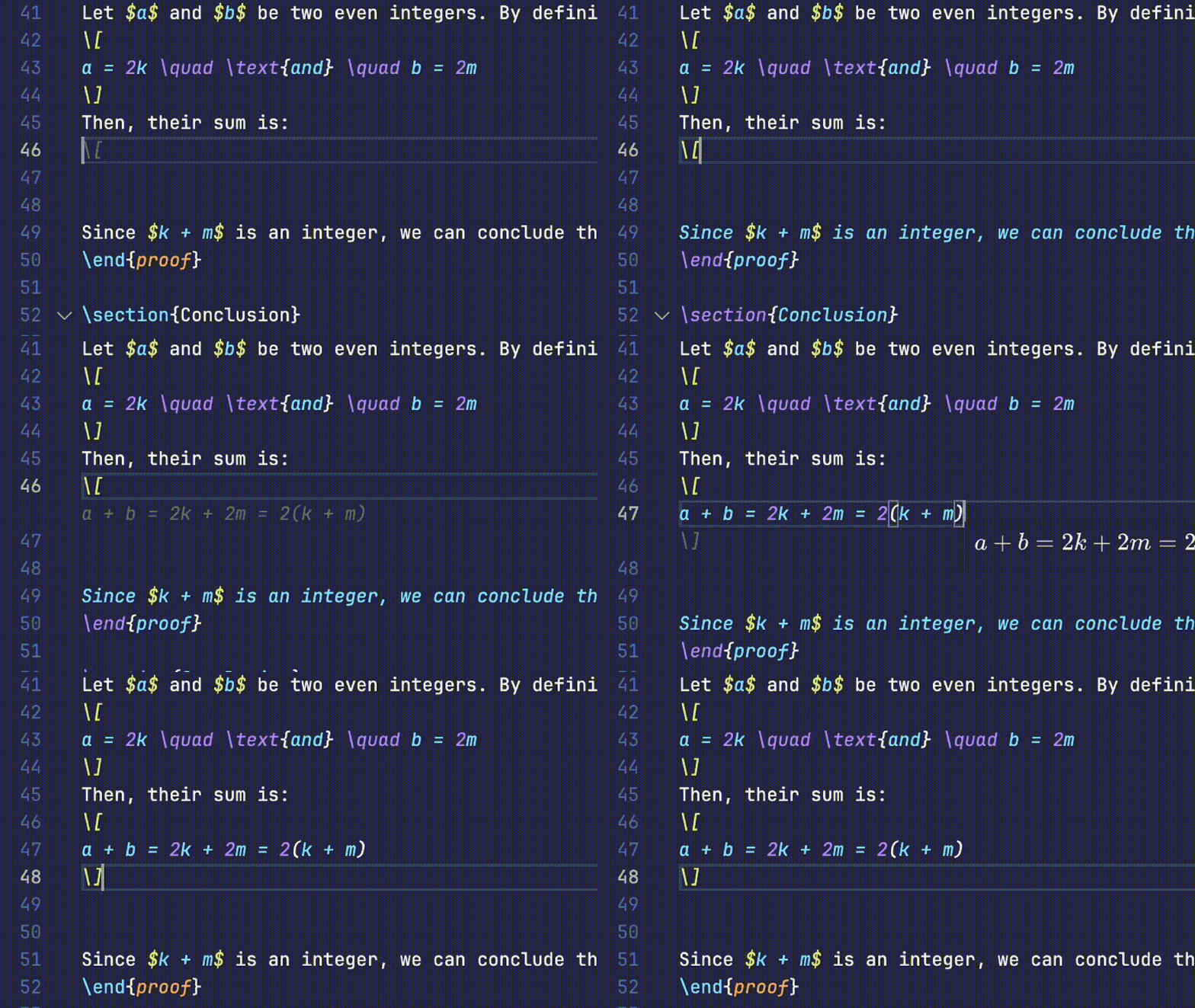
Copilot saves you from searching LaTeX commands online: start typing and it suggests the right syntax, a whole align environment, or the next line of a proof.
- Install the GitHub Copilot extension and sign in with GitHub.
- Copilot Free works for everyone, with a monthly limit. If you’re a student, verify your account with the GitHub Student Developer Pack to get Copilot Pro for free.
- Start typing: suggestions appear in grey. Press
Tabto accept. - For a specific request (“make this a 3×3 matrix”, “fix this error”), open inline chat with
Cmd+I(Mac) orCtrl+I(Windows/Linux).
A note on privacy: what you type is sent to GitHub’s servers to generate suggestions. Avoid using it on confidential documents.
Step 4: Speed up with snippets#
For a long time, typing math on a computer felt like it interrupted my reasoning. I always wanted to use LaTeX, but typing \ before every command slowed me down too much to keep up in class. Word’s AutoMath had shown me how good type-what-you-mean feels, and VS Code snippets give you exactly that in LaTeX. Once I set them up, I switched for good.
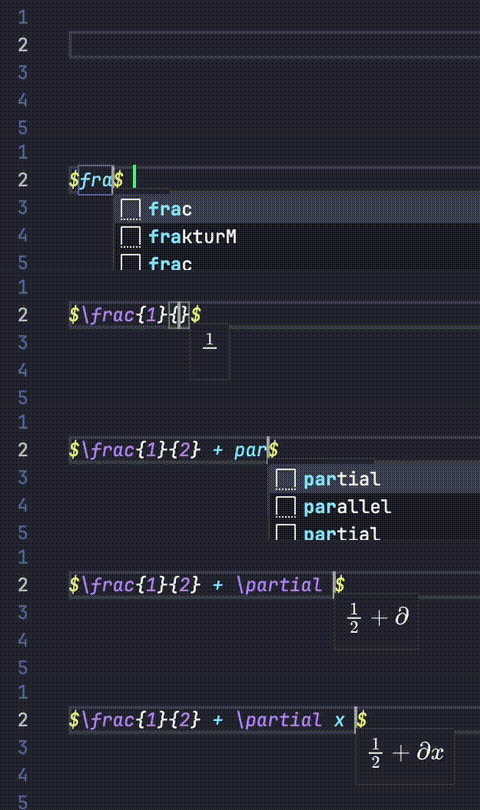
A snippet expands a short keyword into a full LaTeX structure: type frac, press Tab, and you get \frac{}{} with your cursor in the first pair of braces.
Create your snippets#
- Open the Command Palette and run Snippets: Configure Snippets.
- Choose latex (or create a global snippet file).
- A JSON file opens. Each snippet has:
- a
prefix: the keyword that triggers it, - a
body: the text it inserts, - a
description(optional).
- a
Example, for a fraction:
"Fraction": {
  "prefix": "frac",
  "body": ["\\frac{$1}{$2}$0"],
  "description": "Insert a fraction"
}
Two details:
- Backslashes must be doubled (
\\frac), because the file is JSON and\is an escape character in JSON. The snippet will insert a single\. $1,$2are the positions your cursor jumps to when you pressTab;$0is where it ends.
Download my snippets#
To save you time, here is the snippet file I use every day:
Open it, copy its content into your own LaTeX snippet file, and adapt the prefixes to your habits.
Conclusion#
Setting up LaTeX locally with VS Code, Copilot and snippets takes an hour, but you get that time back within a few weeks of classes. Once I got used to it, I never went back to Overleaf: everything is fast, works offline, and I stay focused on the math instead of the syntax.