
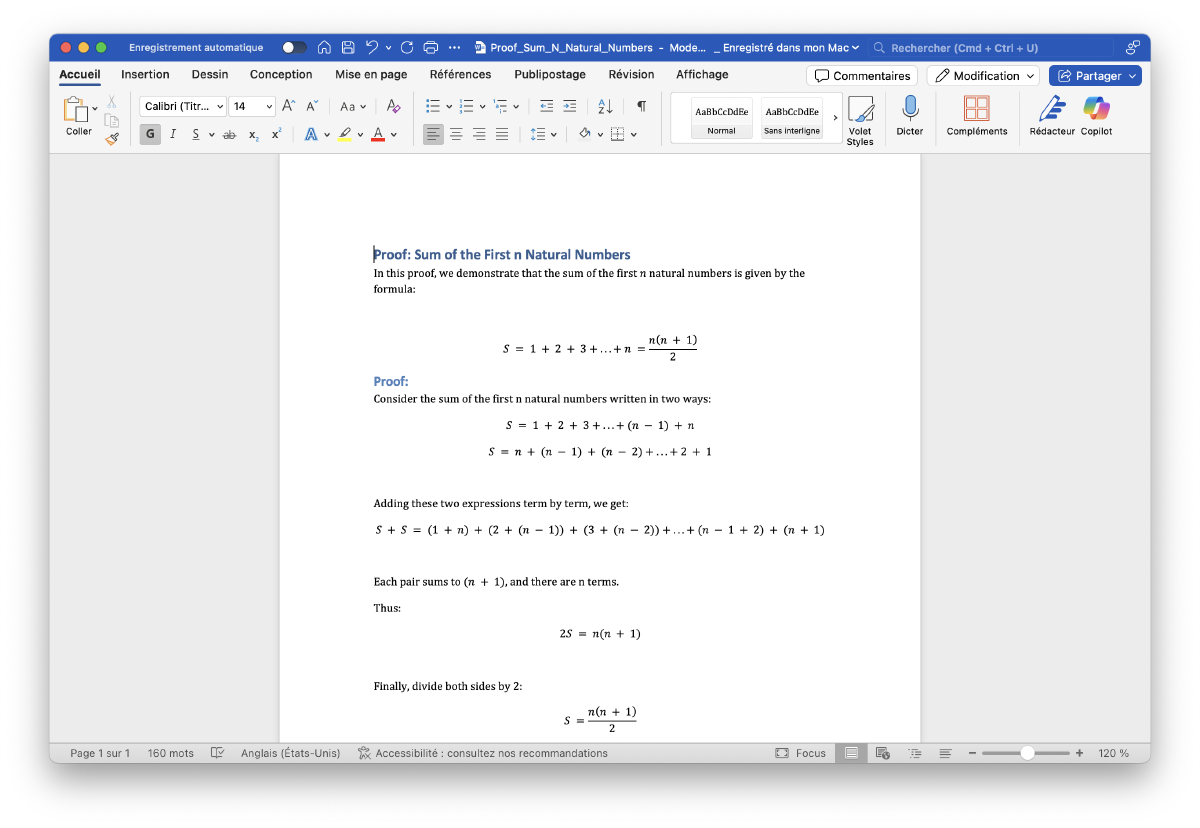
Typing math on a computer is frustrating. You hunt for the right symbol, the formatting breaks, and by the time the equation looks right you’ve lost your train of thought.
Writing by hand has always been slow and hard for me, so in high school I decided to take all my notes on a computer, math included. What made it work was a Word feature most people never touch: Math AutoCorrect (which I’ll call AutoMath, its name in the Mac settings).
This guide shows how to set it up, how to add your own shortcuts, and gives you my shortcut file so you can skip that step.
Why Word for math notes?#
Before switching to LaTeX at university, I used Word for every math class. The main reason: what you see is what you get. The equation appears formatted as you type, with nothing to compile.
With AutoMath, typing an equation feels close to writing it on paper, with the bonus of being able to edit, copy and search your notes.
What is AutoMath?#
AutoMath converts what you type into formatted math, as you type. For example, inside an equation, typing:
(1/2)x^2gives you:
$$\frac{1}{2}x^2$$
How to enable AutoMath in Word#
You need Word 2016 or later. Menu names vary slightly between versions, but the idea is the same everywhere.
On macOS:
- Go to Word > Settings (called Preferences in older versions) > AutoCorrect.
- Open the Math AutoCorrect tab.
- Check Replace text as you type.
On Windows:
- Go to File > Options > Proofing > AutoCorrect Options.
- Open the Math AutoCorrect tab.
- Check Replace text as you type.
Customize your shortcuts#
In that same Math AutoCorrect tab, you can edit existing shortcuts or add your own:
- In the Replace column, type the shortcut, for example
omega. - In the With column, enter the symbol, for example
ω.
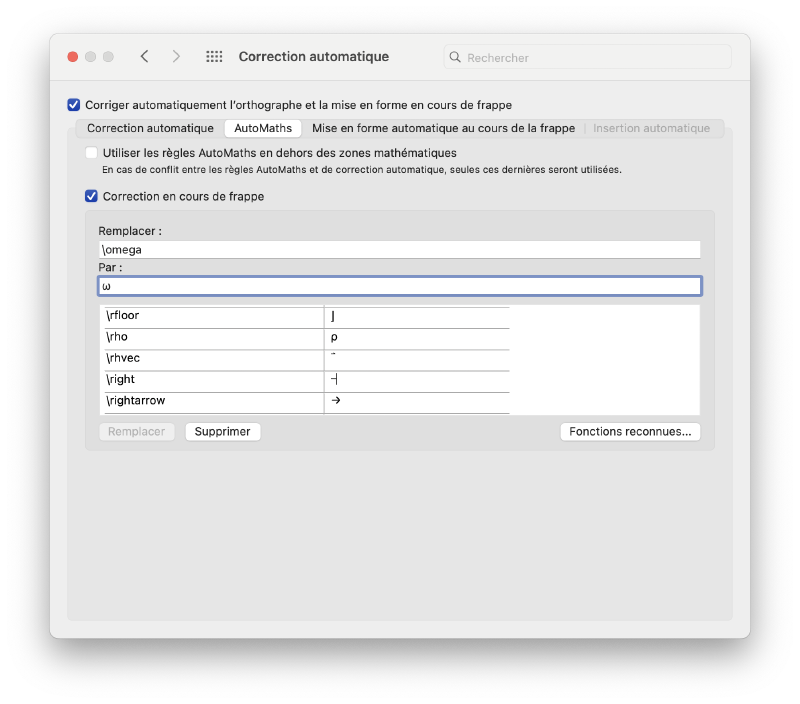
Tip: use LaTeX names without the backslash. Type omega instead of \omega, alpha instead of \alpha. You’ll be fast in Word and already know the LaTeX commands the day you switch.
Download my shortcuts (macOS)#
To save you the setup, here is the shortcut list I used all through high school:
👉 Download my Math AutoCorrect shortcuts for Mac
To install it:
- Quit Word.
- Unzip the file. You get a file named
Microsoft Office ACL [Math]. - In Finder, click Go in the menu bar, hold Option, and click Library.
- Open Group Containers > UBF8T346G9.Office.
- Put the file there. If a file with the same name already exists, back it up first: it contains your current shortcuts.
- Reopen Word.
On Windows, I don’t know of a simple way to import a shortcut list. You’ll have to add your shortcuts by hand in the Math AutoCorrect tab. It takes a while, but you only do it once.
Insert an equation in one keystroke#
- Windows:
Alt+= - Mac:
Ctrl+=
An equation box appears. Type your math, and AutoMath formats it as you go.
Examples#
| What you type | What Word displays |
|---|---|
x^2 + y^2 = z^2 | \(x^2 + y^2 = z^2\) |
int x dx | \(\int x \, dx\) |
sum_(i=1)^n i^2 | \(\sum_{i=1}^{n} i^2\) |
(a+b)/(c+d) | \(\frac{a+b}{c+d}\) |
Note: Word only converts the expression when you type a space or an operator after it. If nothing happens, add a space.
Tips for fast note-taking#
- Learn the equation shortcut above. You’ll use it hundreds of times per class.
- Add shortcuts for whatever you type often. Every symbol you stop hunting for in a menu keeps your focus on the math.
- Keep formulas simple and structured. Long equations are easier to read (and fix) split over several lines.
The limits of AutoMath, and when to switch to LaTeX#
Word and AutoMath are great for getting started and for everyday notes, but they hit their limits with:
- long documents (reports, theses),
- complex cross-references,
- precise control over the final layout.
That’s where LaTeX shines, at the cost of a steeper learning curve. I wouldn’t push anyone to switch in high school: AutoMath did the job for me without any issue. At university, though, LaTeX quickly becomes the standard for reports and scientific writing.
When I made the switch, I set up VS Code so that LaTeX feels just as fast as AutoMath. I explain how in How I Take Math Notes Faster with VS Code, LaTeX and AI.
Conclusion#
If you want a simple, fast way to type math on a computer, Word with AutoMath is an excellent starting point. It let me take every math note on my laptop throughout high school and stay focused on the reasoning rather than the formatting.